Custom Scrollbars & UI Chrome
Reviewed & published by Brayan K
Custom scrollbar styling lets you restyle a browser's scroll track and thumb to match your theme using the standard scrollbar-color and scrollbar-width properties, plus the WebKit ::-webkit-scrollbar pseudo-elements for finer control.
Part of the free HTML & CSS course at LearnCodingFast — hands-on lessons with examples you run in your browser, plus practice exercises and a quick quiz.
By the end you'll style any scrollbar to match your theme — in every browser — without hurting usability.
What You'll Learn
- Style scrollbars the standard way with scrollbar-width and scrollbar-color
- Use the WebKit ::-webkit-scrollbar / -thumb / -track pseudo-elements for fine control
- Animate scrolling with scroll-behavior: smooth and snap cards with scroll-snap
- Trap scrolling inside a panel with overscroll-behavior: contain
- Write one cross-browser snippet that styles scrollbars everywhere
- Keep scrollbars usable and accessible — never invisible or too thin to click
💡 Real-World Analogy
Think of a scrollbar like the volume slider on a hi-fi. The track is the groove it slides in, and the thumb is the knob you grab. Default scrollbars are the plain plastic knob the factory fitted; a custom scrollbar is the same mechanism with a knob that matches your gear. You're repainting the knob — not changing how it works — so keep it big enough to grab and easy to see.
The Two Scrollbar APIs
A scrollbar has two parts you can style: the thumb (the bit you drag) and the track (the groove behind it). There are two ways to style them, and you need both.
The standard properties. scrollbar-width takes auto, thin, or none, and scrollbar-color takes two colours — thumb first, then track. These work in Firefox and modern Chrome (121+). They're simple but you only get colour and a coarse width.
The WebKit pseudo-elements. ::-webkit-scrollbar targets the whole bar, ::-webkit-scrollbar-thumb the handle, and ::-webkit-scrollbar-track the groove. They work in Chrome, Safari and Edge and give you exact pixel widths, border-radius, borders, gradients and :hover states — but Firefox ignores them completely.
The takeaway: write both. The standard properties cover Firefox; the WebKit pseudo-elements add the polish for everyone else.
📊 WebKit Scrollbar Pseudo-Elements
| Pseudo-Element | What It Styles | Common Properties |
|---|---|---|
| ::-webkit-scrollbar | The entire scrollbar | width, height |
| ::-webkit-scrollbar-thumb | The draggable handle | background, border-radius, border |
| ::-webkit-scrollbar-track | The groove behind the thumb | background, border-radius |
| ::-webkit-scrollbar-thumb:hover | The handle on hover | background (darker shade) |
1. Both APIs Together (Worked Example)
Read every comment, then run it. The same box gets a styled scrollbar in both Firefox and Chrome because it declares the standard properties and the WebKit pseudo-elements together.
<!DOCTYPE html>
<html>
<head>
<style>
  body { font-family: system-ui, sans-serif; padding: 24px; color: #333; }
  h1 { color: #1565C0; }

  /* A box that is taller than its content area, so it must scroll. */
  .scroll-box {
    height: 180px;          /* fixed height ... */
    overflow-y: auto;       /* ... + overflow:auto = a vertical scrollbar */
    border: 1px solid #ddd;
    border-radius: 8px;
    padding: 16px;
  }

  /* --- API 1: the STANDARD properties (Firefox + modern Chrome) --- */
  .scroll-box {
    scrollbar-width: thin;                 /* auto | thin | none */
    scrollbar-color: #1976D2 #f0f0f0;      /* thumb-colour  track-colour */
  }

  /* --- API 2: the WEBKIT pseudo-elements (Chrome, Safari, Edge) --- */
  .scroll-box::-webkit-scrollbar { width: 10px; }              /* whole bar */
  .scroll-box::-webkit-scrollbar-track { background: #f0f0f0; border-radius: 5px; }
  .scroll-box::-webkit-scrollbar-thumb { background: #1976D2; border-radius: 5px; }
  .scroll-box::-webkit-scrollbar-thumb:hover { background: #1565C0; } /* feedback */
</style>
</head>
<body>
  <h1>One scrollbar, two APIs</h1>
  <p>Write BOTH so every browser gets a styled scrollbar.</p>
  <div class="scroll-box">
    <p>Scroll me. The thumb is the part you drag; the track is the groove behind it.</p>
    <p>Lorem ipsum dolor sit amet, consectetur adipiscing elit. Sed do eiusmod tempor.</p>
    <p>Ut enim ad minim veniam, quis nostrud exercitation ullamco laboris nisi.</p>
    <p>Duis aute irure dolor in reprehenderit in voluptate velit esse cillum.</p>
    <p>Excepteur sint occaecat cupidatat non proident, sunt in culpa qui officia.</p>
  </div>
  <!-- Result: a thin blue scrollbar in Firefox, a 10px blue bar in Chrome/Safari. -->
  <!-- ✅ Expected result, measured in a real browser:
     h1 -> color: rgb(21, 101, 192)
     .scroll-box -> height: 180px
  -->
</body>
</html>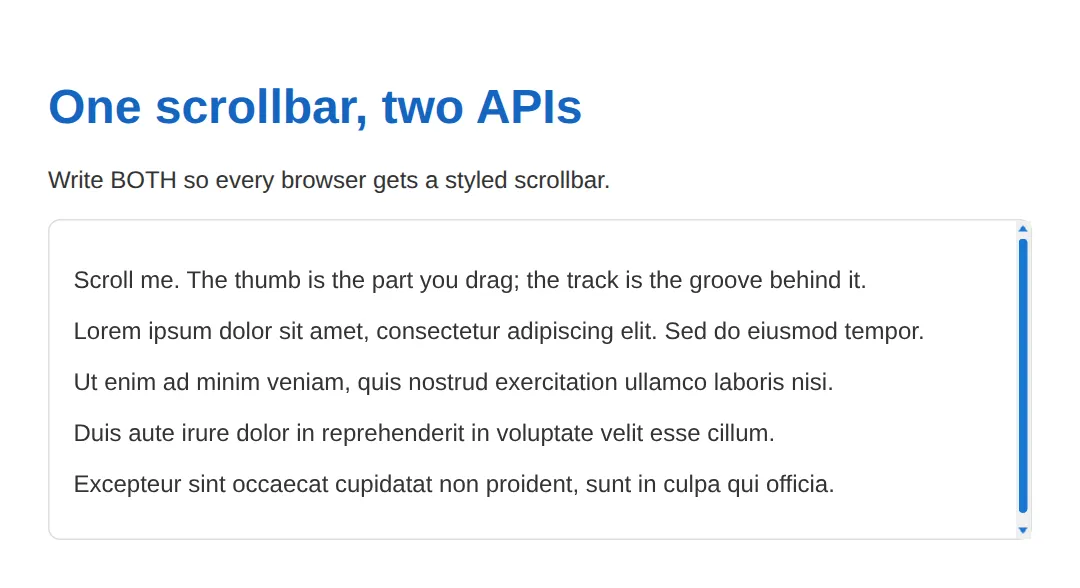
2. Smooth Scrolling & Scroll-Snap
scroll-behavior: smooth animates jumps (handy for anchor links). scroll-snap-type makes a scroll container snap each child into place — the classic carousel feel. Note the horizontal bar uses height, not width.
<!DOCTYPE html>
<html>
<head>
<style>
  body { font-family: system-ui, sans-serif; padding: 24px; color: #333; }
  h1 { color: #1565C0; }

  /* scroll-behavior: smooth animates jumps (anchor links, scrollTo). */
  html { scroll-behavior: smooth; }

  .row {
    display: flex;
    gap: 16px;
    overflow-x: auto;          /* horizontal scroll -> use HEIGHT on the bar */
    padding-bottom: 12px;
    scrollbar-width: thin;
    scrollbar-color: #FF9800 #FFF3E0;
    /* scroll-snap-type makes the row snap each card into place as you scroll. */
    scroll-snap-type: x mandatory;
  }
  .row::-webkit-scrollbar { height: 8px; }   /* horizontal bar -> height, not width */
  .row::-webkit-scrollbar-thumb { background: #FF9800; border-radius: 4px; }
  .row::-webkit-scrollbar-track { background: #FFF3E0; border-radius: 4px; }

  .card {
    min-width: 200px; flex-shrink: 0;
    padding: 24px; border: 1px solid #e0e0e0; border-radius: 12px;
    scroll-snap-align: start;   /* each card lines up at the start edge */
  }
</style>
</head>
<body>
  <h1>Smooth scroll + snap</h1>
  <p>Drag the orange bar. Each card snaps into position.</p>
  <div class="row">
    <div class="card"><h3>Design</h3><p>Craft the interface.</p></div>
    <div class="card"><h3>Develop</h3><p>Build the features.</p></div>
    <div class="card"><h3>Deploy</h3><p>Ship to users.</p></div>
    <div class="card"><h3>Monitor</h3><p>Watch the metrics.</p></div>
    <div class="card"><h3>Iterate</h3><p>Improve from feedback.</p></div>
  </div>
  <!-- Result: smooth animated scrolling + cards that snap as you drag the bar. -->
  <!-- ✅ Expected result, measured in a real browser:
     .row -> display: flex
     h1 -> color: rgb(21, 101, 192)
     .card -> count: 5
  -->
</body>
</html>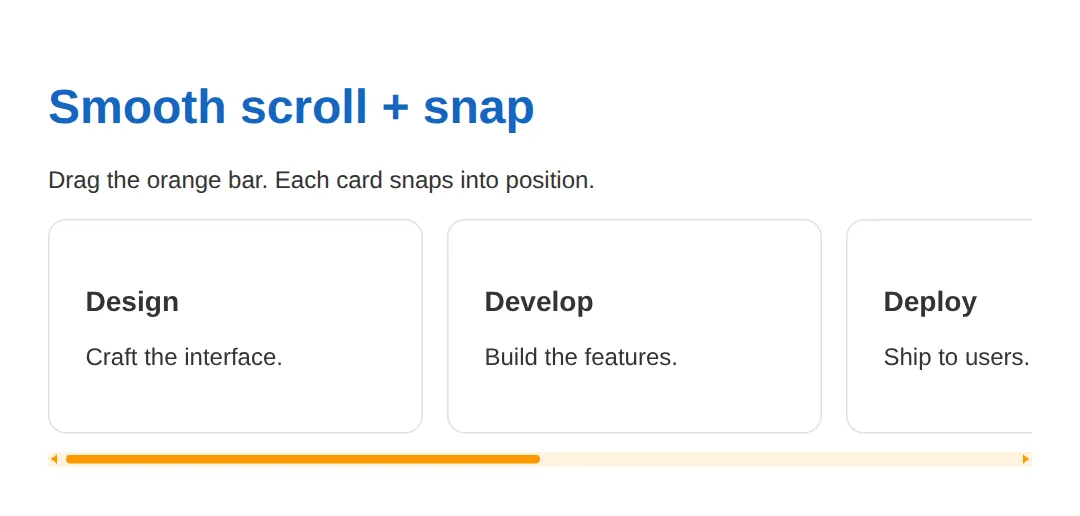
3. Containing the Scroll with overscroll-behavior
When you scroll to the end of a panel, the page behind it normally takes over — that's "scroll chaining". overscroll-behavior: contain stops it, which is exactly what you want for chat windows and modals.
<!DOCTYPE html>
<html>
<head>
<style>
  body { font-family: system-ui, sans-serif; padding: 24px; color: #333; height: 1200px; }
  h1 { color: #1565C0; }

  .panel {
    height: 160px;
    overflow-y: auto;
    border: 1px solid #ddd; border-radius: 8px; padding: 16px;
    scrollbar-width: thin;
    scrollbar-color: #4CAF50 #E8F5E9;

    /* overscroll-behavior: contain stops the "scroll chaining" effect — when
       you reach the bottom of this panel, the PAGE behind it does NOT start
       scrolling. Great for chat windows, dropdowns and modals. */
    overscroll-behavior: contain;
  }
  .panel::-webkit-scrollbar { width: 8px; }
  .panel::-webkit-scrollbar-thumb { background: #4CAF50; border-radius: 4px; }
  .panel::-webkit-scrollbar-track { background: #E8F5E9; }
</style>
</head>
<body>
  <h1>overscroll-behavior: contain</h1>
  <p>Scroll inside the green panel to its end — the long page stays put.</p>
  <div class="panel">
    <p>Message 1 — keep scrolling to the bottom.</p>
    <p>Message 2 — the page behind will NOT take over.</p>
    <p>Message 3 — that "scroll chaining" is what contain blocks.</p>
    <p>Message 4 — perfect for chat threads and pop-overs.</p>
    <p>Message 5 — the end. Notice the page didn't move.</p>
  </div>
  <p style="margin-top:24px">(The page itself is 1200px tall on purpose.)</p>
  <!-- Result: reaching the panel's edge no longer scrolls the page behind it. -->
  <!-- ✅ Expected result, measured in a real browser:
     h1 -> color: rgb(21, 101, 192)
     .panel -> height: 160px
  -->
</body>
</html>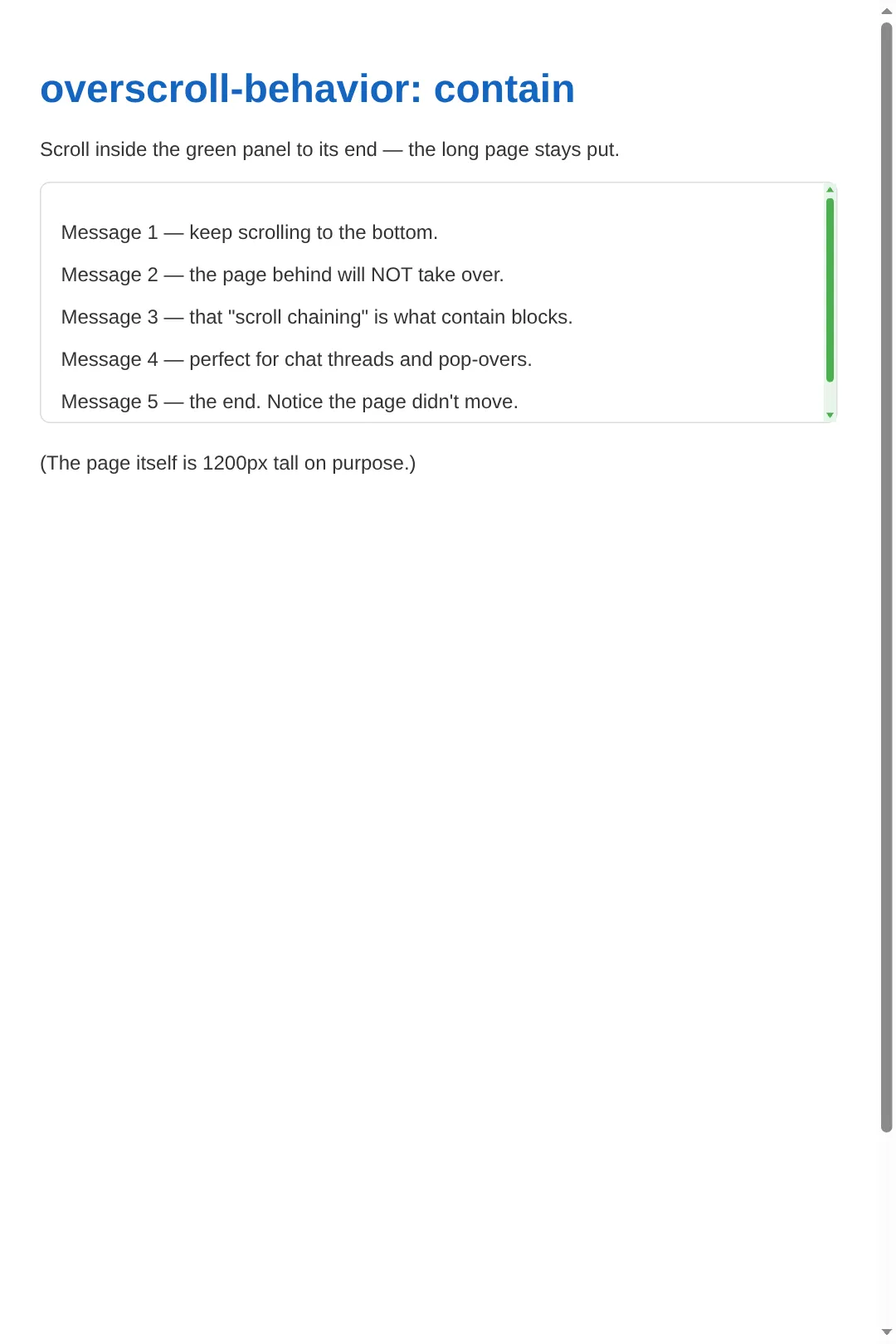
🎯 Your Turn #1 — Standard Properties
Fill in the blanks so the box gets a thin scrollbar with a purple thumb on a light track. This is the Firefox / standards approach — only two lines.
<!DOCTYPE html>
<html>
<head>
<style>
  body { font-family: system-ui, sans-serif; padding: 24px; color: #333; }

  .box {
    height: 160px;
    overflow-y: auto;            /* makes it scrollable */
    border: 1px solid #ddd; border-radius: 8px; padding: 16px;

    /* 🎯 YOUR TURN — fill in the blanks marked with ___ */

    /* 1) Make the scrollbar thin (auto | thin | none) */
    scrollbar-width: ___;        /* 👉 replace ___ with the keyword for slim */

    /* 2) Set the thumb to purple (#9C27B0) and the track to light grey (#eee) */
    scrollbar-color: ___ ___;    /* 👉 thumb-colour first, then track-colour */
  }
</style>
</head>
<body>
  <h2>Style this scrollbar</h2>
  <div class="box">
    <p>Scroll me once you've filled in the blanks.</p>
    <p>Lorem ipsum dolor sit amet, consectetur adipiscing elit.</p>
    <p>Sed do eiusmod tempor incididunt ut labore et dolore magna.</p>
    <p>Ut enim ad minim veniam, quis nostrud exercitation ullamco.</p>
    <p>Duis aute irure dolor in reprehenderit in voluptate velit.</p>
  </div>
  <!-- ✅ Expected: a THIN scrollbar with a PURPLE thumb on a light-grey track. -->
</body>
</html>
🎯 Your Turn #2 — WebKit Pseudo-Elements
Now do the same job the WebKit way. Decide whether each blank is width/height, thumb/track, and which :state gives hover feedback.
<!DOCTYPE html>
<html>
<head>
<style>
  body { font-family: system-ui, sans-serif; padding: 24px; color: #333; }
  .box { height: 160px; overflow-y: auto; border: 1px solid #ddd;
         border-radius: 8px; padding: 16px; }

  /* 🎯 YOUR TURN — finish the WebKit scrollbar (Chrome/Safari/Edge) */

  /* 1) Make the whole scrollbar 12px wide */
  .box::-webkit-scrollbar { ___: 12px; }          /* 👉 width or height? */

  /* 2) Give the draggable handle a teal background + rounded corners */
  .box::-webkit-scrollbar-___ {                   /* 👉 thumb or track? */
    background: #009688;
    border-radius: 6px;
  }

  /* 3) Darken the handle on hover for feedback */
  .box::-webkit-scrollbar-thumb:___ {             /* 👉 which state? */
    background: #00695C;
  }
</style>
</head>
<body>
  <h2>Finish the WebKit scrollbar</h2>
  <div class="box">
    <p>Open this in Chrome or Safari to see your styled bar.</p>
    <p>Lorem ipsum dolor sit amet, consectetur adipiscing elit.</p>
    <p>Sed do eiusmod tempor incididunt ut labore et dolore magna.</p>
    <p>Ut enim ad minim veniam, quis nostrud exercitation ullamco.</p>
    <p>Duis aute irure dolor in reprehenderit in voluptate velit.</p>
  </div>
  <!-- ✅ Expected: a 12px bar with a TEAL thumb that darkens when you hover it. -->
</body>
</html>
When to Use Custom Scrollbars
- Dark-themed apps: default grey bars look jarring on dark backgrounds — match the thumb to your theme.
- Chat & messaging: a thin 4–6px bar feels more app-like; pair it with overscroll-behavior: contain.
- Code editors: a subtle dark-on-dark bar keeps the focus on the code.
- Carousels: style (or hide on touch) the horizontal bar and add scroll-snap-type for polish.
🏆 Mini-Challenge — Dark-Mode Chat Scrollbar
Support is faded now — you get only a comment outline. Build a subtle dark-mode scrollbar on .chat using both APIs, plus overscroll-behavior: contain. Check your work against the expected result in the comment.
<!DOCTYPE html>
<html>
<head>
<style>
  body { font-family: system-ui, sans-serif; padding: 24px; color: #ccc;
         background: #1a1a2e; }
  h2 { color: #90CAF9; }

  /* 🎯 MINI-CHALLENGE: a dark-mode chat panel scrollbar
     1. Make ".chat" 200px tall and scrollable (height + overflow-y).
     2. Add overscroll-behavior: contain so the page doesn't scroll behind it.
     3. STANDARD API: scrollbar-width thin; scrollbar-color = #555 thumb on #1a1a2e track.
     4. WEBKIT API: 8px wide bar; #555 thumb with border-radius; #1a1a2e track;
        and a #777 thumb on :hover.
     ✅ Expected: a subtle grey scrollbar that blends into the dark panel,
        and scrolling to the end does NOT move the page behind it. */

  .chat {
    /* your code here */
  }
</style>
</head>
<body>
  <h2>Dark-mode chat</h2>
  <div class="chat">
    <p>Hey! Style my scrollbar so it fits this dark theme.</p>
    <p>Default grey bars look jarring on dark backgrounds.</p>
    <p>Match the thumb to the UI and keep the track invisible-ish.</p>
    <p>Don't forget the hover state for feedback.</p>
    <p>And keep it scrollable — never hide the bar here.</p>
  </div>
  <!-- ✅ Expected result, measured in a real browser:
     body -> padding-top: 24px
     h2 -> color: rgb(144, 202, 249)
  -->
</body>
</html>
Common Errors & Fixes
- "My scrollbar styles work in Chrome but not Firefox." You only wrote ::-webkit-scrollbar rules, which Firefox ignores. Fix: add scrollbar-width and scrollbar-color to the same selector.
- "No scrollbar appears at all." The element isn't actually overflowing. Fix: give it a fixed height (or max-height) and overflow-y: auto — a scrollbar only shows when content is taller than the box.
- "My horizontal bar is invisible." You set width on ::-webkit-scrollbar. A horizontal bar's thickness is its height. Fix: use ::-webkit-scrollbar { height: 8px; } and overflow-x: auto on the container.
- "Users say they can't grab the scrollbar." You made it too thin (1–3px). Fix: keep desktop bars at least 6–8px wide so they're clickable; thin is fine, hair-thin is not.
- "People keep missing that the box scrolls." You hid the bar with scrollbar-width: none on vertical content. Fix: only hide scrollbars where swipe is obvious (touch carousels); otherwise keep a visible cue.
📋 Quick Reference
| Property / Selector | Does | Example |
|---|---|---|
| scrollbar-width | Standard bar thickness | thin |
| scrollbar-color | Thumb then track colour | #1976D2 #f0f0f0 |
| ::-webkit-scrollbar | Whole bar (width/height) | { width: 8px; } |
| ::-webkit-scrollbar-thumb | Draggable handle | { background: #1976D2; } |
| ::-webkit-scrollbar-track | Groove behind thumb | { background: #f0f0f0; } |
| scroll-behavior | Animate scroll jumps | smooth |
| scroll-snap-type | Snap children into place | x mandatory |
| overscroll-behavior | Stop scroll chaining | contain |
💡 Pro tip: always pair the standard properties with the WebKit pseudo-elements so every browser gets a styled bar.
🎉 Lesson Complete
- ✅ Standard API: scrollbar-width + scrollbar-color (thumb then track)
- ✅ WebKit API: ::-webkit-scrollbar / -thumb / -track + :hover
- ✅ Always write both APIs for full cross-browser coverage
- ✅ Horizontal bars use height; add scroll-snap-type for carousels
- ✅ scroll-behavior: smooth animates jumps; overscroll-behavior: contain stops chaining
- ✅ Keep bars visible and at least ~6px wide — never invisible or too thin to grab
Practice quiz
In the standard scrollbar-color property, which order are the two colors given?
- track then thumb
- background then border
- thumb then track
- Both must be identical
Answer: thumb then track. scrollbar-color takes the thumb color first, then the track color.
Which values are valid for scrollbar-width?
- auto | thin | none
- small | medium | large
- 1px | 2px | 3px
- show | hide
Answer: auto | thin | none. scrollbar-width accepts the keywords auto, thin, or none.
Why won't ::-webkit-scrollbar rules style the scrollbar in Firefox?
- Firefox needs a plugin
- Firefox disables all scrollbars
- You must use !important
- The pseudo-elements are WebKit-only; Firefox uses the standard properties
Answer: The pseudo-elements are WebKit-only; Firefox uses the standard properties. Firefox ignores the WebKit pseudo-elements and styles scrollbars via scrollbar-width/scrollbar-color.
Which pseudo-element styles the draggable handle of a WebKit scrollbar?
- ::-webkit-scrollbar-track
- ::-webkit-scrollbar-thumb
- ::-webkit-scrollbar
- ::-webkit-scrollbar-handle
Answer: ::-webkit-scrollbar-thumb. ::-webkit-scrollbar-thumb styles the handle you drag; -track is the groove behind it.
For a horizontal scrollbar, which property sets its thickness on ::-webkit-scrollbar?
- height
- width
- thickness
- size
Answer: height. A horizontal bar's thickness is its height; vertical bars use width.
What does scroll-behavior: smooth do?
- Changes the scrollbar color
- Hides the scrollbar
- Animates programmatic and anchor-link scrolling instead of jumping
- Snaps elements into place
Answer: Animates programmatic and anchor-link scrolling instead of jumping. scroll-behavior: smooth animates jumps (anchor links, scrollIntoView); it doesn't change appearance.
What does overscroll-behavior: contain prevent?
- The scrollbar from appearing
- Scroll chaining to the page behind a panel
- Smooth scrolling
- Horizontal scrolling
Answer: Scroll chaining to the page behind a panel. overscroll-behavior: contain stops scroll chaining so the page behind a panel doesn't take over.
Which property makes a scroll container snap each child into place?
- scroll-behavior
- overscroll-behavior
- scrollbar-width
- scroll-snap-type
Answer: scroll-snap-type. scroll-snap-type (e.g. x mandatory) makes children snap into place; scroll-snap-align positions each child.
What is required for any scrollbar to appear in the first place?
- A color-scheme declaration
- Content that overflows a fixed-size box (height + overflow)
- A WebKit browser
- The scrollbar-width property
Answer: Content that overflows a fixed-size box (height + overflow). A scrollbar only shows when content overflows a box with a fixed size and overflow: auto/scroll.
Why is hiding the scrollbar on ordinary vertical content an accessibility problem?
- It slows the page down
- It breaks in Chrome
- Users lose the visual cue that there is more content to read
- It disables keyboard scrolling
Answer: Users lose the visual cue that there is more content to read. Hiding the bar (scrollbar-width: none) removes the cue that more content exists below.
Continue this course
- Previous: Progressive Enhancement & Graceful Degradation
- Next: Building Accessible Modals, Dialogs & Overlays — Create modals that trap focus, handle Escape, and work with screen readers
- Quick reference: HTML & CSS cheat sheet
Frequently asked questions
Why isn't my custom scrollbar showing in Firefox?
Firefox ignores the ::-webkit-scrollbar pseudo-elements — they are WebKit-only. Firefox styles scrollbars with the standard scrollbar-width and scrollbar-color properties instead. Always write both APIs: the standard properties for Firefox and modern Chrome, and the ::-webkit-scrollbar pseudo-elements for Chrome, Safari and Edge.
Should I style horizontal scrollbars differently?
The pseudo-elements are the same, but you set height instead of width on ::-webkit-scrollbar (height controls the thickness of a horizontal bar). The container also needs overflow-x: auto instead of overflow-y. Everything else — thumb, track, hover — works identically.
Is it OK to completely hide the scrollbar?
Only when scrolling is obvious another way — for example a horizontal card carousel on a touch device where users swipe. Hiding the scrollbar on ordinary vertical content (scrollbar-width: none) is an accessibility problem because people lose the visual cue that there is more to read. When in doubt, keep a visible bar.
What does scroll-behavior: smooth do?
It animates programmatic and anchor-link scrolling instead of jumping instantly. Set it on the html element (or a scroll container) and clicking an in-page #anchor link, or calling element.scrollIntoView(), glides smoothly. It has no effect on the scrollbar's appearance — it only changes how the scroll motion looks.
When should I use overscroll-behavior?
Use overscroll-behavior: contain on scrollable panels like chat windows, dropdowns and modals. It stops 'scroll chaining' — reaching the end of the inner panel no longer scrolls the page behind it. This keeps the user's focus inside the panel and prevents the surprising jump where the whole page starts moving.